Feega in VS Code: design your running app next to its code
By Andrea Buttarelli, founder of Feega · checked 19 november 2026 · how we checked
the short version
Feega is a free VS Code extension (andreabuttarelli.feega, VS Code 1.90 or newer) that starts your dev server, opens the running app in a panel beside your code, and writes every visual edit you make there back into the source file.
install it
Open the Extensions view with Ctrl+Shift+X (Cmd+Shift+X on a Mac), search for Feega and install the one published by andreabuttarelli. The extension id is andreabuttarelli.feega. From a terminal, code --install-extension andreabuttarelli.feega does the same. The download page also has a button that opens VS Code straight on the install screen.
You need VS Code 1.90 or newer and Node 18 or newer, because Feega runs your project's dev server with your own Node. There is no account to create and nothing to configure before the first run.
Updates arrive through the Marketplace like any other extension. If you close the Feega panel, the dev server it started is kept for a short while, so reopening the panel is quick, and then stopped.
first run
Open your project folder in VS Code. Then pick one of three ways in:
- Run Feega: Open from current workspace from the command palette.
- Right-click a folder in the Explorer and choose Design this folder with Feega. Useful in a monorepo, where the app lives in
apps/web. - Right-click a
.svelte,.vue,.tsx,.jsx,.astroor.htmlfile and choose Design this page with Feega.
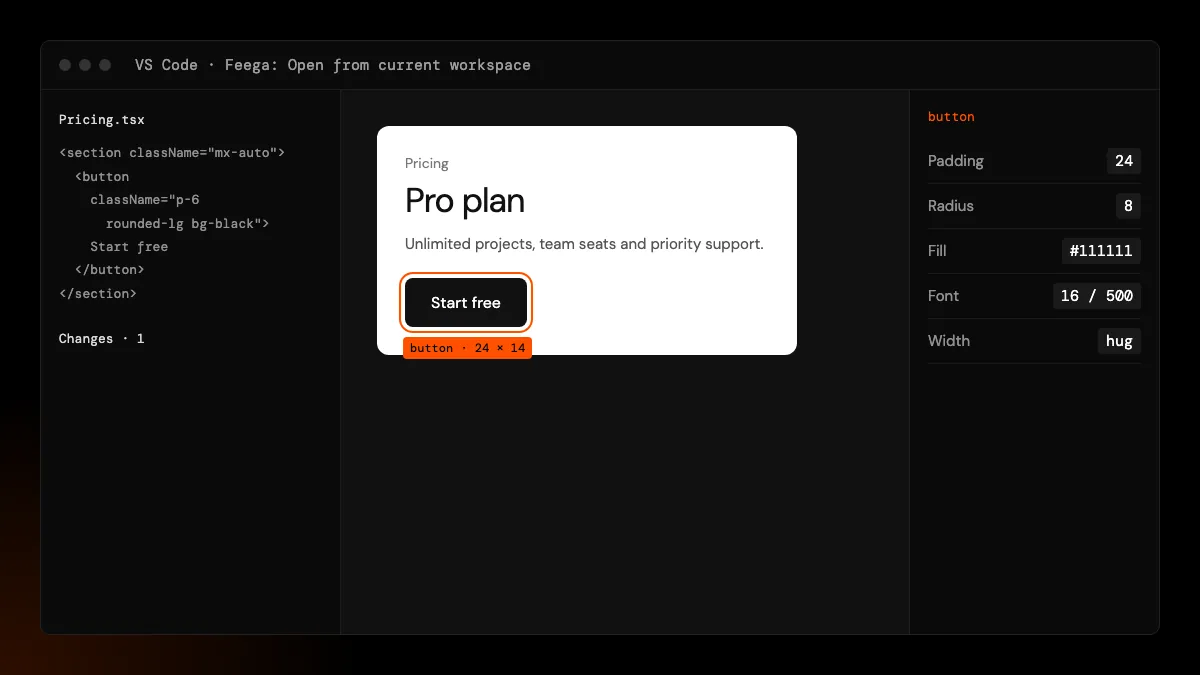
Feega reads package.json and the config files to see which framework you use, installs dependencies if node_modules is missing (you can cancel), picks a free port and starts the dev server. For Vite-based apps it starts Vite itself with your config; for Next.js it runs your dev script with a small preload. Then the app opens in a panel next to your editor.
what the panel gives you
The panel is the app itself, live, with a thin layer of tools around it. In design mode a click selects an element, a breadcrumb shows its parents, and a layers tree lists the page. The right bar has the controls you know from Figma: size, padding and margin, layout and gap, typography, fills, borders, radius and shadows, plus a colour picker. In navigate mode clicks go to the app, so you can log in, open a menu or reach the page you want, then switch back.
A device bar switches the preview between full width, desktop 1440, laptop 1280, tablets, three phone widths and a custom size. Edits respect the width: with Tailwind, Feega changes the class active at that width; with CSS, the rule in the matching media query.
When you select an element, Feega can open its source in the other editor column, on the exact line. That is the quickest way to see what a change is about to touch.
where the edits go
Each change is written to the file and line of the element you clicked. In a Tailwind project that means a utility class swapped in the class or className string. Without Tailwind, Svelte and Vue components get a rule in their <style> block, and React components get a CSS module. Text you type on the page replaces the literal text in the markup. Text that comes from a variable is refused with a pointer to where it comes from.
The Changes list in the panel keeps every step with the files it touched. Undo restores the file unless it changed since, in which case Feega refuses rather than overwrite. VS Code's own Source Control view shows the same edits as ordinary diffs.
settings
Feega has four settings under feegaInspect:
styling:auto,tailwindorcss. Auto checks for Tailwind in your dependencies.devCommand: the command that starts your dev server, if detection picks the wrong one.defaultSize: the preview size on open: full, desktop, tablet or phone.telemetry: anonymous usage counts (opens, edits, framework, styling system), never code or paths. It is also off whenever VS Code's own telemetry is off.
known limits in VS Code
We built and tested Feega on local folders. Remote development (SSH, WSL, dev containers, Codespaces) runs extensions on a different machine from the panel, and we have not checked that the preview and the dev server line up there, so we don't promise it. Click-to-source is verified on React and Vue with Vite, SvelteKit and Next.js. Feega starts other frameworks too, but editing there is untested. If you work in the browser instead of VS Code, npx feega opens the same editor in a tab.
how we checked
We make Feega, so this page is the maker's description. On 19 November 2026 we read the 0.2.2 extension manifest (commands, menus, settings, the ^1.90.0 engine), the start-up code that detects frameworks and launches the dev server, and the code that opens a source line in the editor column. The Marketplace listing was checked the same day. Remote development is not covered and not claimed.
Something wrong or out of date? Write to hi@feega.app.
try it in 2 minutes
- Install Feega from the Extensions view, or run code --install-extension andreabuttarelli.feega.
- Open your project and run "Feega: Open from current workspace".
- Click an element in the panel and change its spacing or colour.
- Check the diff in Changes or in Source Control, then keep it or undo it.
mistakes people make
Opening the monorepo root and getting the wrong app. Right-click the app folder and use "Design this folder with Feega".
Starting the dev server yourself on a custom port first. Let Feega start it, or set feegaInspect.devCommand so it runs the right script.
Editing in design mode when you meant to click a link. Switch to navigate mode to use the app, then back to design mode to edit.
Expecting it to work over SSH or in Codespaces. Remote setups are untested. Use a local checkout or npx feega.
questions
Which VS Code version do I need?
VS Code 1.90 or newer, plus Node 18 or newer for your project.
Is the VS Code extension free?
Yes. It is free and open source under Apache-2.0, with no account.
Does it work offline?
Yes, once installed. Feega makes no model calls; the only network use is anonymous usage counts, which you can turn off.
Can I use it without VS Code?
Yes. Run npx feega in your project folder to open the same editor in the browser.
sources
- Feega on the Visual Studio Marketplace, checked 19 november 2026
- Feega source code on GitHub (Apache-2.0), checked 19 november 2026
- Feega docs: the inspect extension, checked 19 november 2026
- VS Code: extension marketplace, checked 19 november 2026
- VS Code: command line interface, checked 19 november 2026
- VS Code: remote development, checked 19 november 2026
read next
- Feega in Cursor: fix the look by hand, keep the agent for the logic
- Feega in VSCodium: an open-source visual editor in an open-source editor
- A visual editor for React that writes to your components
- A visual editor for SvelteKit that writes into your components
- Onlook alternatives when you want it inside your editor
- Download Feega